How to Edit TikTok Auto Captions and Check the Transcript
By TranscriptNest · Published 2026-11-05
For your own post, edit its caption lines and verify them against the audio
If you own the TikTok video, open its caption controls and edit the generated lines there; then replay the relevant audio before saving. TikTok's Help Center describes editing or removing generated subtitles on your own video. A separate TikTok transcript is different: if you need text you can review or keep outside the post, preserve the original media and use an authorized file-based transcription workflow. Editing the post's captions does not itself establish that a standalone transcript was exported.
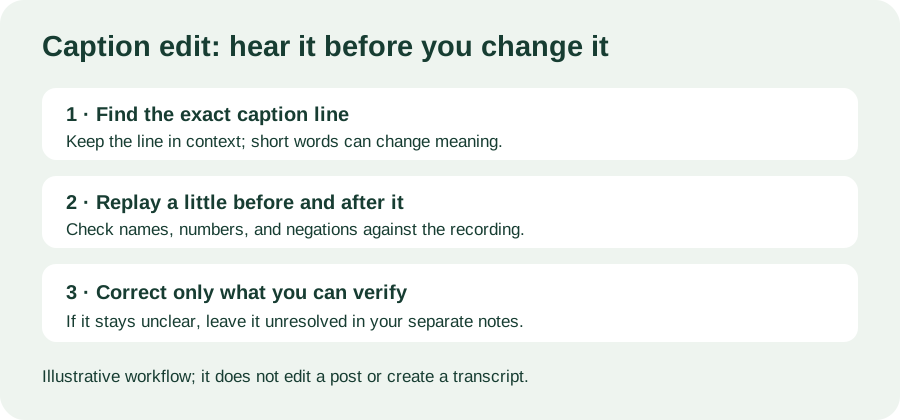
Use the caption editor for the post you control
TikTok's current Help Center instructions direct creators to open their own video, select its subtitles, choose the edit control, make the correction, and save. Labels and placement can vary by app build or region, so follow the controls currently shown in your account rather than relying on a screenshot from an older version. The platform's auto-caption announcement also describes editing generated caption text after it is created. Do not use a creator-only editing path to change another person's post.
Check the sound before replacing a caption word
Replay the line with a little audio before and after it. Check names, negations, numbers, and short words that can reverse the meaning. If you still cannot hear a word clearly, leave it unresolved or mark the uncertainty in your separate notes; a plausible sentence is not evidence that the caption is right. The Library of Congress transcription guidance emphasizes checking the source and applying a consistent style, rather than silently rewriting what was spoken.
Invented example: one word changes the instruction
This is an invented example, not a TikTok caption or a measured transcript. Suppose the recording says, “Do not turn after the bridge,” but the generated line reads, “Do turn after the bridge.” The missing word changes the instruction. Replay the exact segment, confirm whether “not” is audible, correct the caption only if you can verify it, and then listen once more with the edited line visible. If the audio masks the word, do not guess from the sentence that seems more logical.
Keep caption timing and transcript text separate
On-screen captions are attached to playback and appear in timed lines. A transcript is a text record that you can inspect separately. When you need a searchable copy, keep the first text output unchanged and put corrections in a second, clearly labeled copy. Record which words you verified from audio and which remain uncertain. That small version boundary makes it easier to compare an edited reading copy without mistaking it for the original caption track.
When should I make a separate TikTok transcript?
Make a separate transcript when you need to quote, search, annotate, or retain the spoken words outside the post. For a video you are authorized to process, an uploaded media file can be transcribed separately. That does not edit the TikTok post, create timed captions, or verify every recognized word; review important passages against the recording.
Can I edit captions on someone else's TikTok?
This workflow covers caption editing for a post you control. For someone else's video, you can make private notes from material you are allowed to access, but you cannot use the creator's post editor. Do not present a separate transcript as an official correction to their captions.