Why Does My Video Stop Before Transcription Starts?
By TranscriptNest · Published 2026-10-22
Start with the last status message, not the file extension
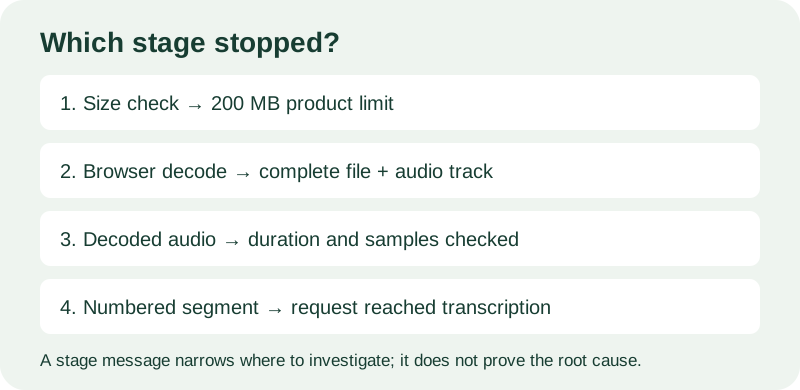
If a video stops before text appears, first note the exact status shown and whether it says decoding or names a transcription segment. Those are different stages. In TranscriptNest, the browser reads and decodes the complete selected file before the page sends audio segments to the transcription service. A failure during “Decoding audio in your browser…” therefore happens before that file's first transcription request; it is not evidence that the speech model rejected the video. The extension alone cannot tell you how the audio inside the file is encoded.
If the page names a file limit or says no audio was found
The current page checks the selected file against its 200 MB product limit, then checks decoded duration against 30 minutes, and reports “No audio found” if the decoded audio buffer has no samples. These checks happen before transcription. If the message names a limit, compare the actual file size or clip duration with that limit. If it says no audio, play the source file and check whether it contains a speech track. The status is a clue about the decoded result; it is not a diagnosis of why a track is missing.
If decoding fails, isolate the browser and file
The tool uses the browser's Web Audio decoder on the complete file. MDN describes decodeAudioData() as decoding audio-file data from an ArrayBuffer and notes that it works on complete file data rather than fragments. Try opening the same local file in a current desktop browser and confirm it plays with sound. Then make a short test copy from media you own or may process and try that file. If the short copy decodes but the original does not, record the browser, exact message, file size, duration, and export settings before trying another export. This comparison can narrow the issue; it does not establish general format support.
If a numbered transcription segment fails, keep the partial text
After decoding, TranscriptNest converts audio into mono 16 kHz chunks of up to 30 seconds and sends each chunk for transcription. The status names the current segment. If a request fails, the page says the job is incomplete and that displayed text may be partial. Copy or save that text before restarting, note the failed segment number and message, and retry only after confirming the source still plays. The app does not currently resume at a selected segment, so a new run may process earlier portions again.
A diagnostic example: decoding message versus segment message
Illustrative example, not a measured test: imagine the page remains at “Decoding audio in your browser…” and then reports an error. Write down that wording, the browser version, and whether the local file plays. Do not report a Whisper or Cloudflare outage: the transcription loop has not begun. In a different run, suppose the page reaches “Transcribing segment 3 of 8 on Cloudflare…” and then shows “Not complete.” That points to a request during a later stage. Save whatever text is already visible and report the segment number. These messages identify the app stage; they do not by themselves identify the root cause.
What to include when asking for help
Send the exact status text, browser and operating system, file size, approximate duration, whether the file plays with sound locally, and whether the page ever showed a segment number. Do not send a private recording unless you are comfortable sharing it. TranscriptNest's current page processes uploaded media in the browser first, then sends short audio chunks to Cloudflare Workers AI; its transcript is an AI-generated draft that should be checked against the source.